How it works

You add the bookings. Big Trip Planner works out the rest.

Big Trip Planner is a calendar for one trip at a time. It knows where you will be each hour, so it can put every booking on the right local clock and tell you when two things cannot both happen.

Step 1 · Add your bookings

Open your trip and press the + button at the top. You can add a journey (a flight, train, bus, ferry, taxi, hire car, walk or cycle), a place to stay, an activity (anything you want to do), or a hire car.

For a flight, type the flight number and the date and press Fill the form from this flight. The airports, times and airline are filled in for you. Check them, then press Add Journey.

For a hotel, type its name or address and the check-in and check-out dates. Big Trip Planner finds the place on the map and uses it to work out the time zone and the travel to and from it.

You can also drag an outing to a new time, and double-click anything to open it and change it.
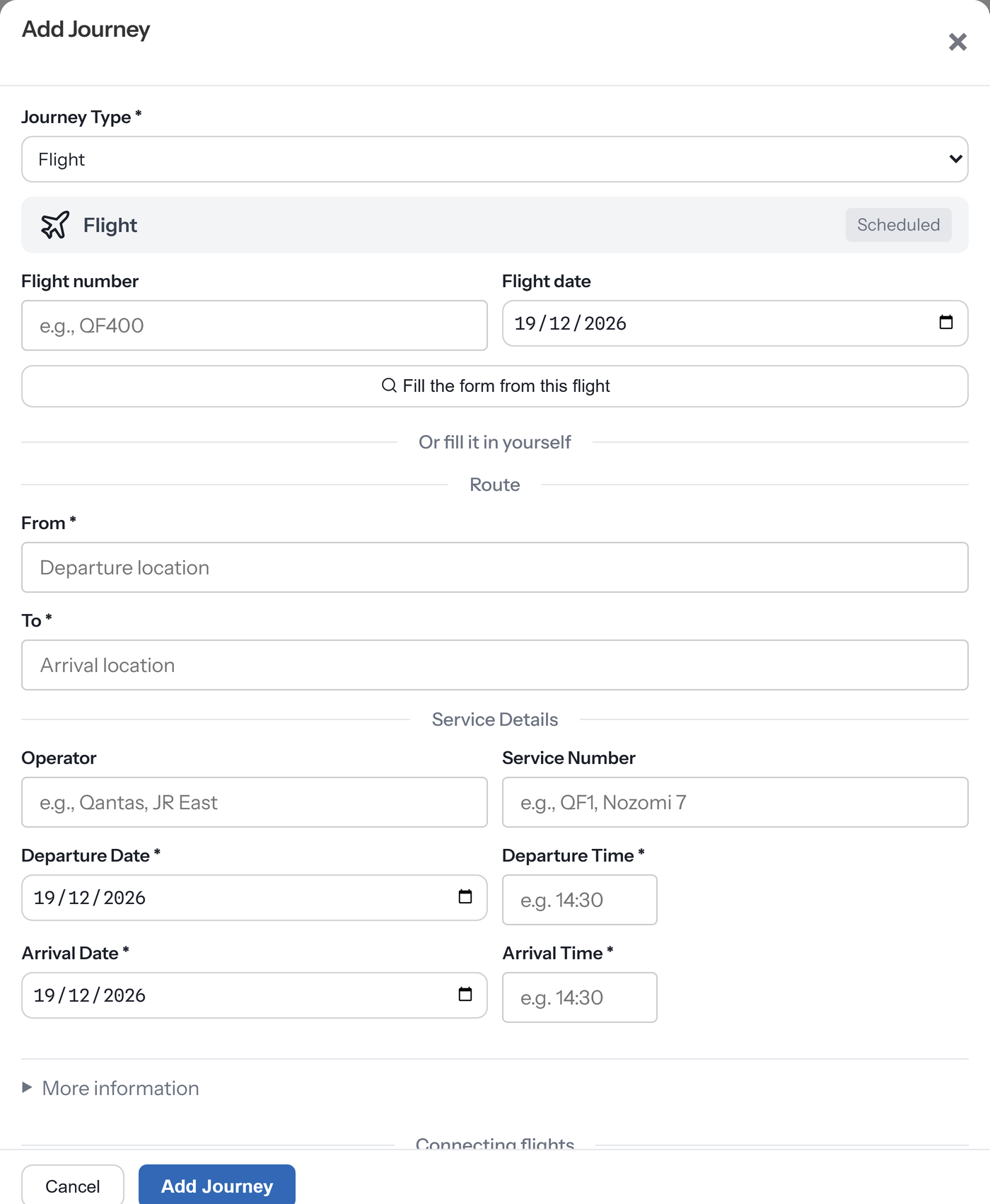
The Add Journey form with Flight chosen.

Step 2 · It lays them out in the right time zones

Each day on the calendar runs on the clock of the place you are in that day. The coloured strip down the side of a day names the place.

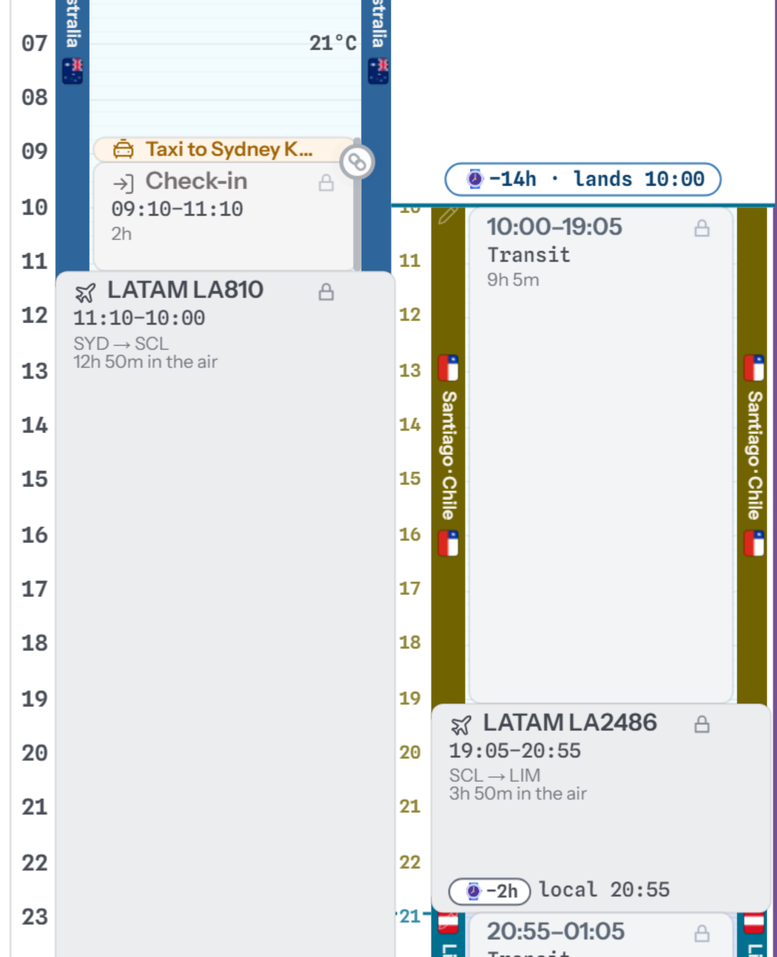
A flight is drawn at its true length, from take-off to landing. When the flight crosses into a new time zone, the clock changes the moment you land, and a small capsule says by how much. Everything after it runs on the new time.

An overnight flight is drawn across the night, not squashed into one day. You can see how long you are in the air and what time it will be when you arrive.

Big Trip Planner also draws sunrise and sunset on each day, the temperature down the side, and public holidays at the top, so you can see that the museum is shut on Monday before you plan around it.

A Sydney day beside an overnight flight column with a minus 14 hours, lands 10:00 capsule.

Step 3 · It warns you before anything clashes

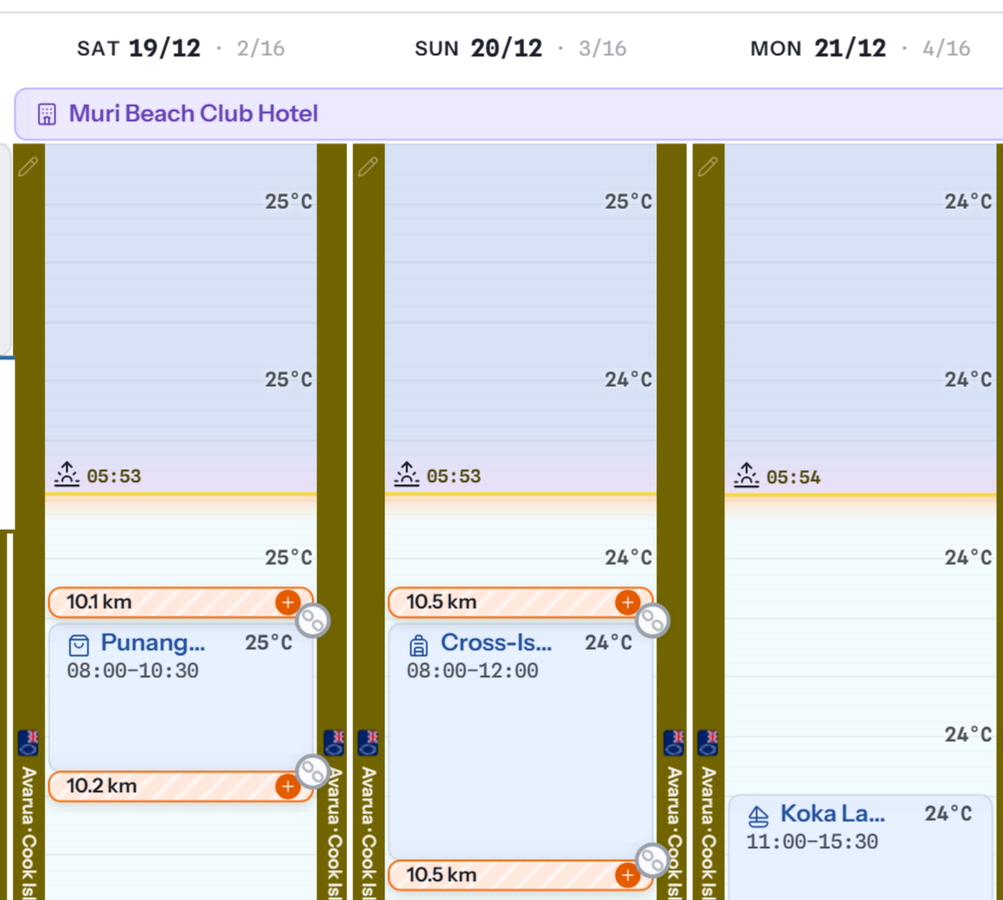
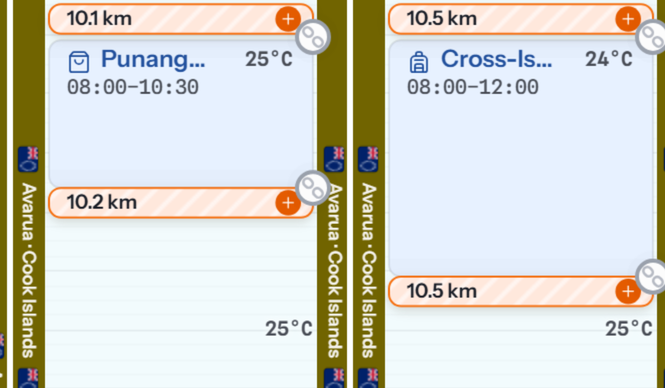
Because Big Trip Planner knows where each booking is, it knows when the next one is somewhere else. If nothing on the calendar takes you there, an orange warning appears in the gap with the distance.

  1. Click the warning.
  2. Choose how you will get there: walk, public transport, drive or cycle. For a drive, choose a taxi or your own car.
  3. The journey goes on the calendar with its travel time, and the warning goes away.

If there is not enough time, it says so in plain words: You can't get from the hotel to the ferry in 20 min. The taxi takes 35 min.

Warnings are advice, not rules. If you know you will walk, you can hide one. Hidden warnings are kept in the ⋯ menu if you change your mind.

Three days in Rarotonga with orange transfer warnings between the hotel and each outing.
The calendar

One week at a time, every day the same width.

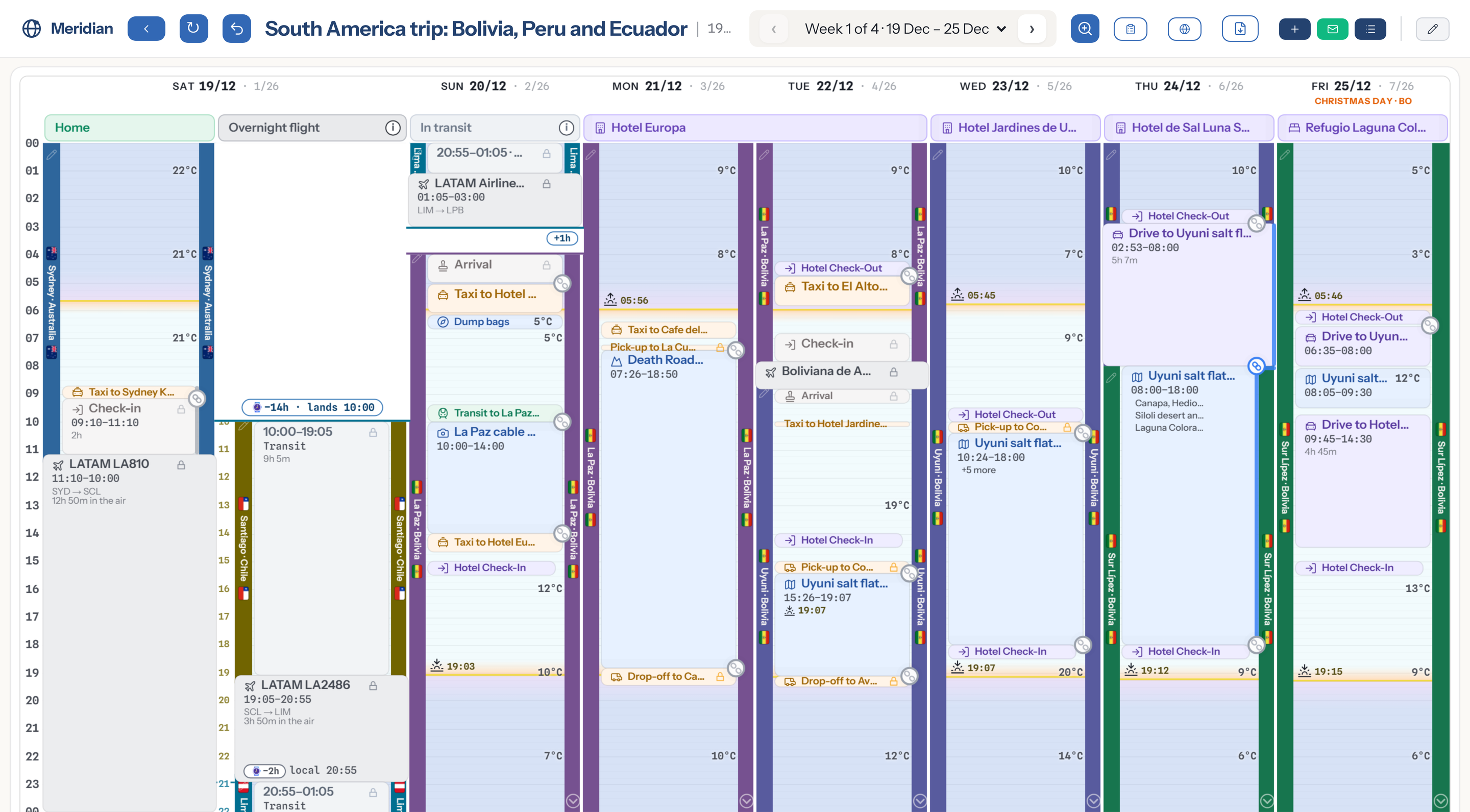
A trip is shown a week at a time. Each day is a column. Flights, hotels, transport, outings and check-in windows each have their own colour, so you can read a week at a glance.

A week of a South America trip on the Big Trip Planner calendar.

Hotels run along the top and bottom of the days you are staying, with the check-in and check-out as small blocks.

Airport time is drawn too: a check-in window before the flight, and an arrivals window after it for passport control and bags.

Sleeping hours can be squeezed up so the day you are awake fills the screen. The night opens out again with one click.

Three ways to show a time change. One long day, the day drawn twice, or every day on its own clock. You pick in Preferences.

Undo takes back the last change. Nothing moves on its own after you let go of it.

Zoom makes the hours taller when a day is busy.

Time zones

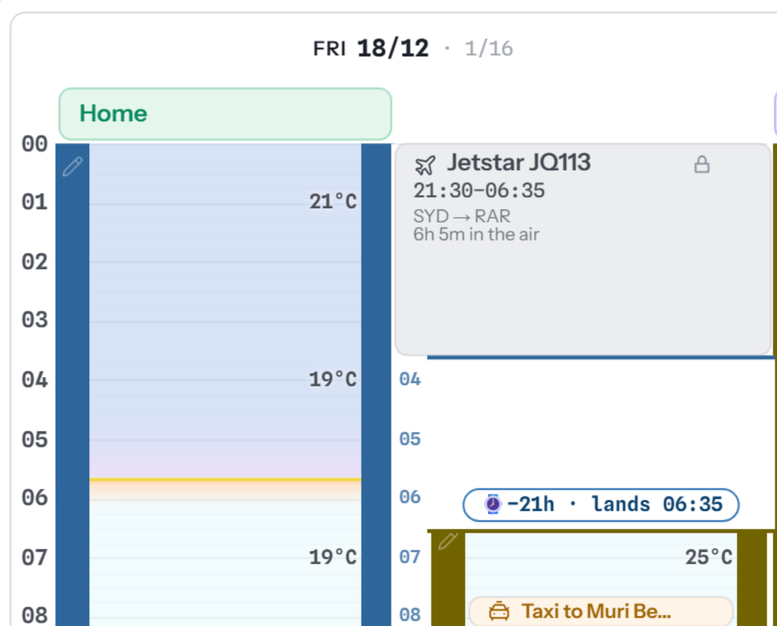
Leave on Friday night, land on Friday morning.

A flight from Sydney to Rarotonga crosses the date line, so you land before you took off. Big Trip Planner shows that Friday twice: once on Sydney time, once on Rarotonga time. Going the other way, a day disappears, and the calendar shows that too.

A Friday in Sydney next to the same Friday in Rarotonga.

The capsule on the flight says what happened to the clock: −21h · lands 06:35. The blue numbers down the side of the second column are the new local time.

Every time on the calendar is the local time where you will be standing. You never have to add or take away hours in your head.

Warnings

Soft warnings, in plain words.

A warning never moves your bookings. It tells you what it found and offers the fix.

Nothing takes you there. The next booking is somewhere else and there is no transport in between. Click to add some.

Not enough time. There is transport, but it takes longer than the gap you have left.

Two things at once. Two bookings overlap. Big Trip Planner never lets one block sit on top of another, so you will always see it.

Orange transfer warnings above and below a morning market visit.
Sharing Plus

Plan it with the people you are travelling with.

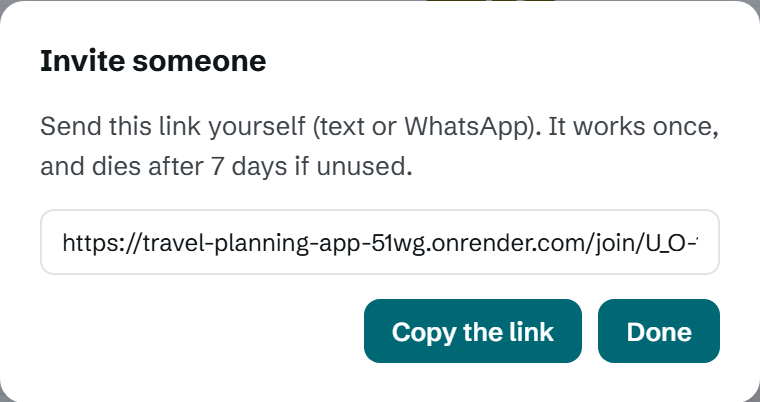
Invite someone from the ⋯ menu on the trip. Big Trip Planner gives you a link; you send it yourself, by text or WhatsApp. The link works once and dies after seven days if nobody uses it. Big Trip Planner never emails anyone for you.

People you invite see the same calendar. When one of them wants to change the plan, it becomes a proposal. Everyone on the trip votes. Two days with no objection counts as a yes.

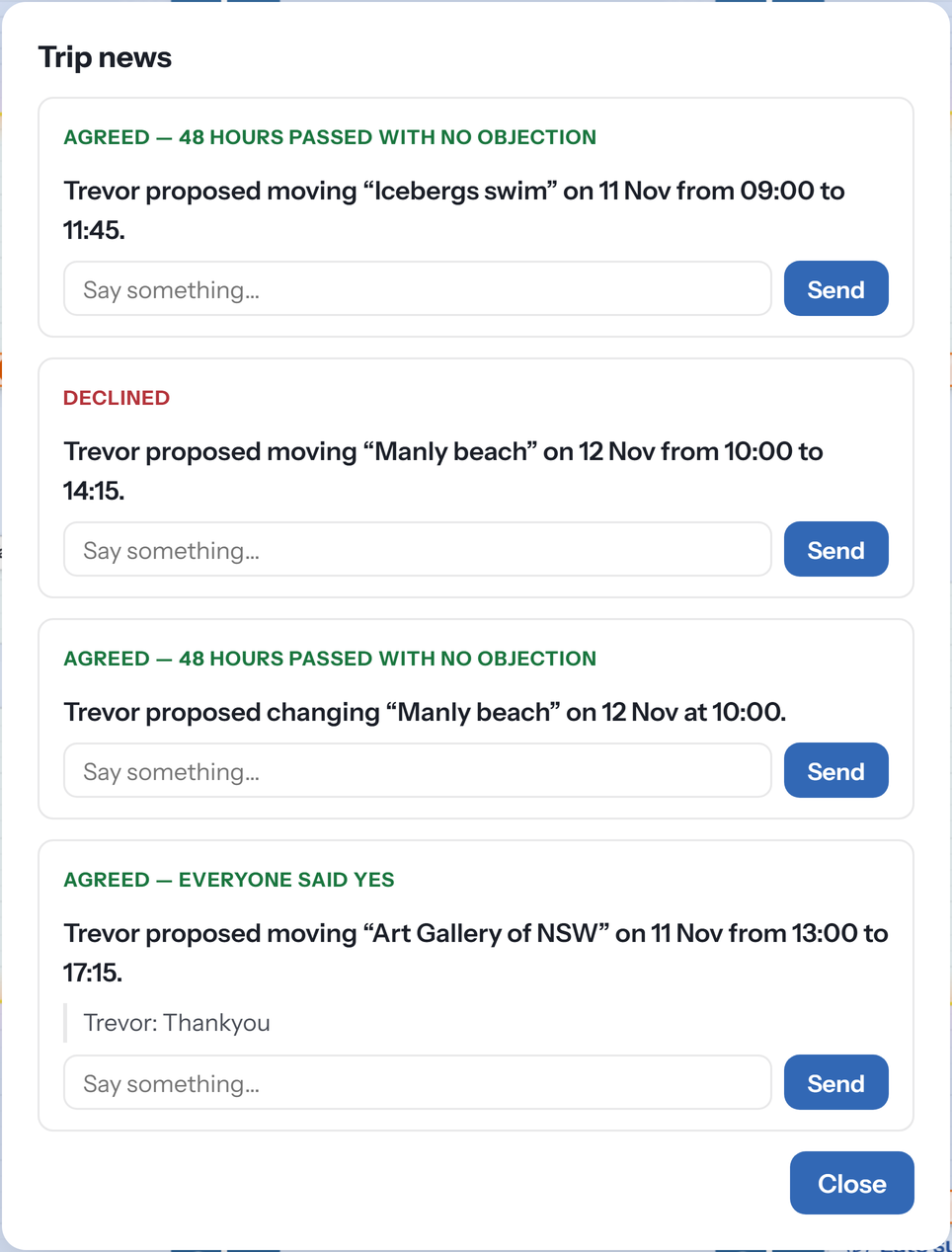
Trip news is the record: every proposal, who made it, how it was decided, and the replies.

The person who made the trip can cancel any proposal. Anyone else can leave the trip whenever they like.

The Invite someone box with a one-use link.
Trip news: four proposals, three agreed and one declined.
The inventory page

The trip as a list, ready to print.

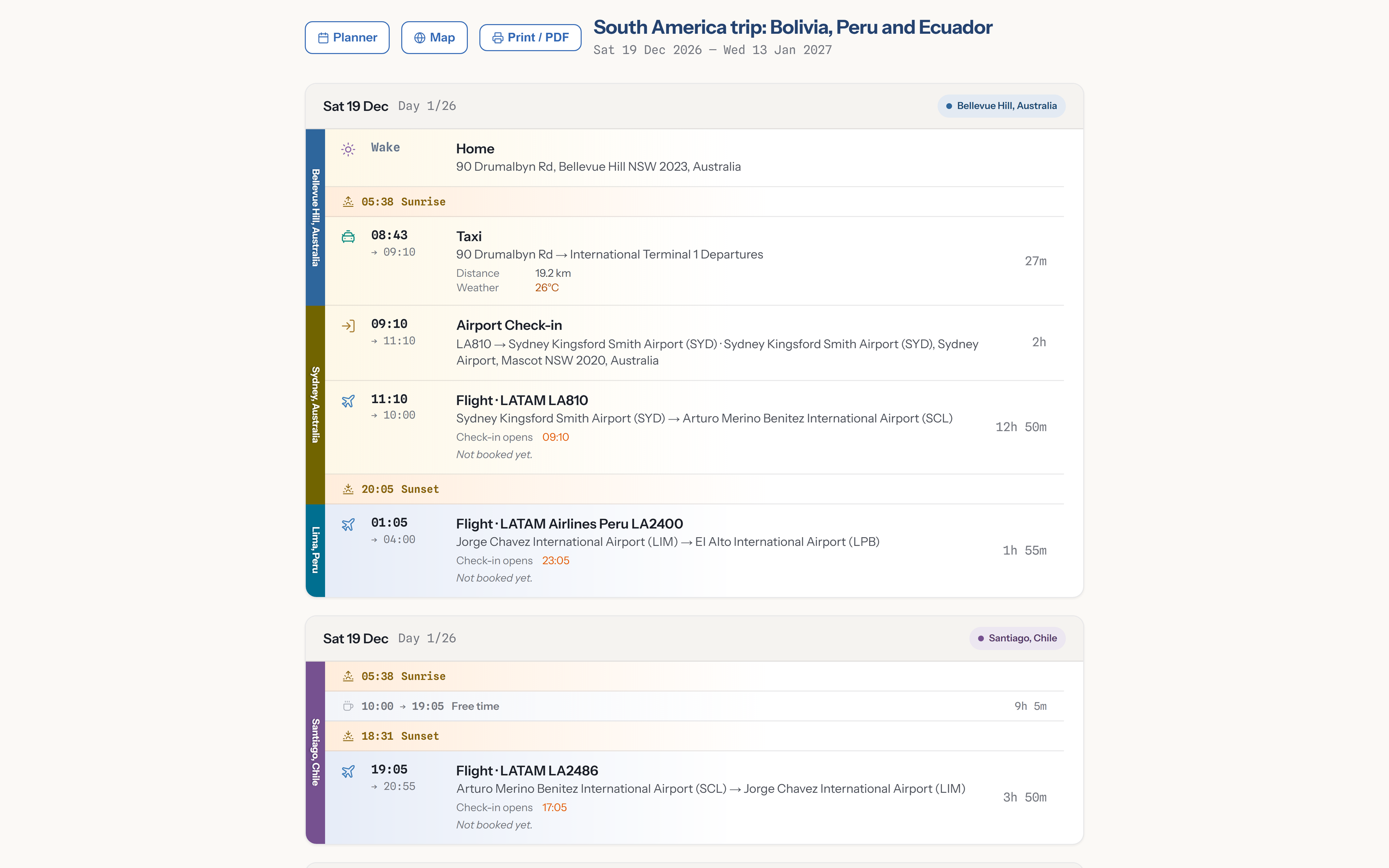
The inventory page is the same trip as a list, day by day: every booking with its times and reference, the sunrise and sunset, and the travel between things. Open it from the clipboard button at the top of the calendar.

Press Print / PDF to print it or save it as a PDF from your browser's print window. Keep a copy on your phone for when there is no signal.

The map button shows the trip on a world map, with a line from place to place in the order you visit them.

The inventory page: a day of the trip as a list, with a Print / PDF button.
Other things it does

Small things that save a trip.

Save a trip to a file. Save a whole trip from the ⋯ menu and load it on another computer from your trips page. Nothing is lost on the way.

Paste a booking email Plus and Big Trip Planner reads the flight or hotel out of it and fills the form.

Hire cars have a pick-up and a drop-off, and the car is yours to drive in between.

Preferences, for you alone: a 12-hour or 24-hour clock, kilometres or miles, how early you like to be at the airport, and the hours you sleep.

Connecting flights are tied together, so moving one moves the other.

Your phone. The calendar works on a phone, one day at a time, with the same bookings.

Start planning — free

Already have an account? Sign in